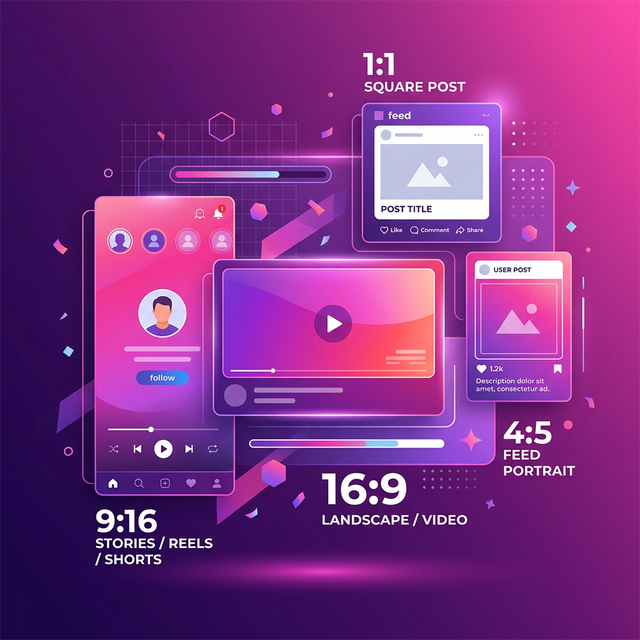
Every social media platform enforces completely different, highly specific image dimension requirements, and these parameters frequently change without any public announcement. If you blindly upload an incorrectly formatted photo, the underlying platform algorithm will mercilessly crop it, arbitrarily stretch the composition, or aggressively compress the file into an unrecognizable blur. Taking tight control over your exact image dimensions ensures your brand visuals remain sharp, engaging, and professional across every digital channel.
Quick Solution
If you want to solve this problem instantly and format your photographs predictably, you can use our free Social Media Resizer tool.
Steps:
- Upload your high-resolution original picture
- Select your specific target network (like Instagram 4:5)
- Download the perfectly dimensioned final result
Why Native Platform Compression Ruins Photos
Internal social platform algorithms heavily favor images that officially display correctly without triggering automatic server-side cropping. When you upload an oversized or incorrectly ratioed file directly from a modern smartphone, the platform's backend servers automatically apply heavy destructive compression. This forced platform compression is rarely intelligent; it aggressively prioritizes minimizing total server file size reduction at the severe expense of visual quality, frequently introducing visible heavy banding and a complete loss of edge sharpness. By pre-sizing and pre-compressing your image assets locally first, you actively retain complete control over the visual quality that your audience ultimately experiences.
Step-by-Step Guide
Step 1 – Source a high quality file
Always confidently begin with the absolute highest resolution original master file possible before actively applying any downscaling procedures. Blurry originals cannot be accurately enhanced later.
Step 2 – Open the resizing tool
Navigate securely to the Social Media Resizer and upload your image data directly via your local browser environment.
Step 3 – Select exact dimensions
Carefully choose the exact structural dimensions needed for your specific targeted current campaign: 1080x1350px exclusively for Instagram Portrait mode, exactly 1280x720px for clear YouTube video thumbnails, or reliably 1200x675px specifically for standard Twitter timeline embeds.
Step 4 – Compress locally
Immediately after resizing, securely process the resulting image through a standard Image Compressor to successfully forcefully reduce the final document file bytes so the dominant platform compression engine comfortably completely ignores your file entirely.
Common Usage Cases
- Instagram Feeds: Diligently ensuring vertical lifestyle posts accurately hit the exact mathematical 4:5 aspect ratio strictly to maximize valuable mobile screen real estate and increase audience scroll retention.
- YouTube Creators: Specifically utilizing a YouTube Thumbnail Resizer rigidly to consistently hit 1280x720px perfectly securely under the strict 2MB upload limit.
- LinkedIn Author Profiles: Effectively preventing awkward article link preview facial cropping by carefully exporting the header precisely at 1200x627px.
Frequently Asked Questions
What is the absolute best image size specifically for Instagram in 2026?
The optimal size is exactly 1080 x 1350 pixels (a 4:5 portrait ratio) because it actively occupies the maximum vertical space on a generic mobile screen.
Why do my recent social media uploads frequently look blurry?
Social networks heavily compress large files strictly to save server storage space. Manually resizing and carefully compressing your images before upload permanently prevents this visual damage.
What precise physical size should a YouTube thumbnail strictly be?
A standard YouTube video thumbnail must be exactly 1280 x 720 pixels (a standard 16:9 aspect ratio) and saved under exactly 2MB in total file size.
How can I safely resize an image without losing visual quality?
Use a designated browser-based client social media resizer to accurately dynamically scale your photograph explicitly down to the required strict pixel bounds exclusively before naturally exporting.
Related Tools
Comments
Loading comments…