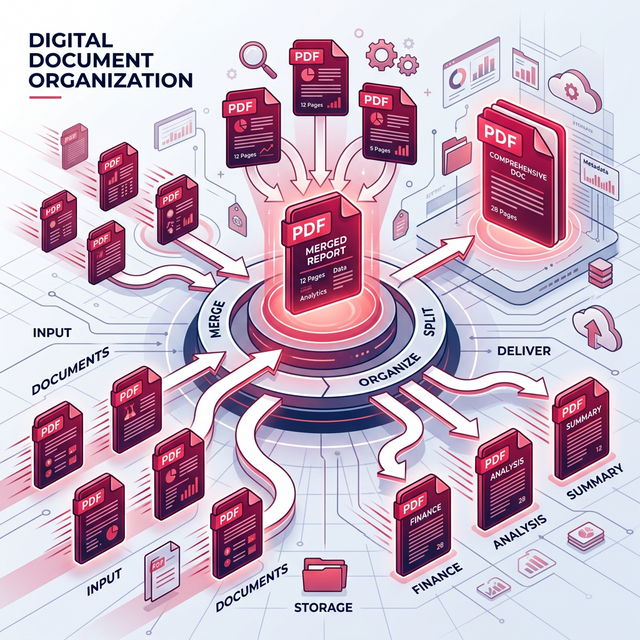
The Portable Document Format (PDF) is the enduring bedrock of modern professional communication. It ensures that a complex legal contract designed on a Mac looks identical when opened on an Android phone. However, its greatest functional strength—locking visual formatting firmly in place—unfortunately makes it notoriously frustrating to edit and manipulate for the average business user. This problem occurs because PDFs are strictly engineered as digital paper to prevent accidental layout shifts, meaning you cannot reorganize or pull apart the pages using a standard text editor. Solving this problem matters greatly because struggling with rigid documents wastes countless hours of administrative time when trying to combine monthly financial reports or extract vital signature pages. Mastering simple online PDF utilities instantly restores your control over your important digital paperwork.
Quick Solution
If you want to solve this problem instantly without expensive software, you can use our free suite of PDF utilities, starting with the Organize PDF tool.
Steps:
- Upload your file
- Adjust the settings if needed
- Download the result
Why This Problem Happens
Fundamentally, PDFs are technically designed to act as impenetrable digital paper, preventing formatting changes across diverse devices globally. This rigid structural strength ultimately makes relatively simple administrative tasks—like seamlessly compiling multiple separate invoices into a single cohesive monthly report, surgically extracting highly specific pages from a massive 500-page operational manual, or quickly fixing an out-of-order scanned document—incredibly difficult without utilizing expensive enterprise subscription software. Learning exactly how to intelligently and effectively manage these heavily rigid, locked local files vastly saves massive amounts of critical time continuously. By utilizing browser-based tools, you completely bypass the need for desktop installations. In fact, if your overall merged document becomes incredibly large, you can easily use our Compress PDF tool immediately afterward to reliably save gigabytes of hard drive space locally.
Step-by-Step Guide
Step 1 – Open the tool
Navigate securely to the Organize PDF tool on Imagetoolkit. Because the entire processing engine runs securely inside your web browser, you do not need to register a new account or install local applications.
Step 2 – Upload your file
Securely upload your scattered PDF files directly into the central dashboard. The incredibly fast local browser engine systematically extracts visual page thumbnails precisely and clearly displays them flawlessly on a clear grid layout.
Step 3 – Adjust settings if needed
Visually reorder the exact page layout simply by dragging and dropping the thumbnails precisely where you strategically need them. Effectively delete duplicate cover pages entirely, or cleanly rotate upside-down scanned pages back upright directly into the final structural layout correctly.
Step 4 – Download the result
Instantly download the perfectly organized PDF document cleanly to your local drive. If you subsequently decide you need to firmly separate a massive document back into segmented chapters, simply load your new file directly into our optimized Split PDF application to confidently detach precise page ranges cleanly.
Common Office Use Cases
Managing rigid electronic documents correctly is a crucial technical skill across almost every professional industry.
- Administrative Executive Reports: Seamlessly compiling scattered financial monthly schedules, vibrant marketing graphs, and custom corporate title cover pages flawlessly into a cohesive single master electronic file securely.
- Academic University Assignments: Logically combining vastly varied complex assignment components cohesively into one unified single upload correctly and natively without scrambling formatting.
- Professional Career Applications: Strategically combining a personalized cover letter safely, an extremely polished career resume efficiently, and dynamic visual portfolio accurately into a perfectly single highly impressive application file gracefully.
Tips or Important Organizational Notes
If you have administrative components stored originally in distinctly different proprietary word processing formats (like a native Word document intended for a title page), first explicitly use a dedicated Word to PDF converter strictly to standardize the core file properly and safely lock the embedded typestyle fonts completely before officially merging it cohesively with your other scattered PDF documents. Standardizing components first perfectly prevents fatal formatting destruction entirely when seamlessly combining files together cleanly locally.
Frequently Asked Questions
How do I combine multiple PDF files into one?
You can upload your separate files to a free online PDF merger, visually arrange the order of the documents within the grid interface, and click to combine them securely into a single compiled file.
Can I extract just one page from a large PDF?
Yes, using a specialized PDF splitter tool, you can upload the full document, select the specific page or custom range of pages you need, and extract them into a brand new, lightweight file.
Is it safe to merge sensitive business documents online?
It is completely safe if you utilize a tool that processes documents locally within your browser environment. This method ensures your confidential contracts and private financial details are never uploaded to a remote server.
How can I fix a PDF where some pages are upside down?
By using an intelligent PDF organizer tool, you can instantly view all pages in a visual thumbnail grid layout, effortlessly select the upside-down scanned pages, and securely rotate them to the correct upright orientation before hitting save.
Related Tools
Comments
Loading comments…