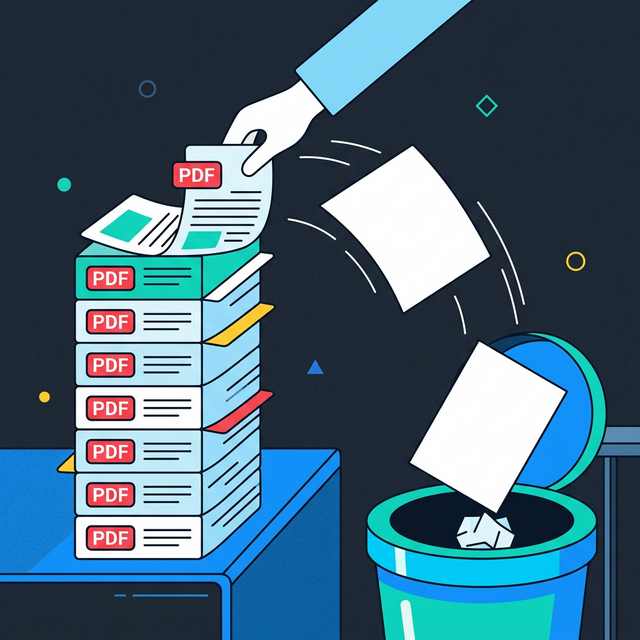
Digital scanning hardware frequently introduces countless entirely blank pages, upside-down documents, or repetitive cover sheets when manually digitizing thick physical binders. This persistent problem occurs because hardware feeding mechanisms inevitably pull empty back sides of pages through their imaging sensors, leaving frustrating digital residue. Removing these completely useless pages matters immensely because they severely disrupt professional reading flow, unnecessarily inflate the master file size, and look incredibly sloppy to potential employers or legal clients when you eventually send the digital package out for serious review. Let us eliminate this digital clutter permanently.
Quick Solution
If you want to solve this problem instantly, you can use our free Remove Pages from PDF tool.
Steps:
- Upload your file
- Adjust the settings if needed
- Download the result
Why This Problem Happens
Most corporate or home office hardware scanners are configured aggressively for raw speed rather than intelligent content awareness. When you drop a thick stack of invoices into an automatic tray, the machine physically blindly pulls every single physical sheet through the high-speed optical lens. Because official documents regularly alternate between single-sided and double-sided printing, the scanner frequently mistakenly generates entirely blank digital sections.
Additionally, large PDF files often contain outdated legal terms of service, expired marketing promotions, or deprecated internal memos that no longer serve any functional purpose for your current immediate workflow. Unlike text editors, PDF software fundamentally treats these pages as unbreakable visual bricks, making them difficult to merely highlight and hit the backspace key to delete. If you need to manipulate individual graphical elements inside the file instead, you might utilize a Convert PDF to Image extraction method first.
Common Situations Where This Is Needed
Knowing exactly when to surgically excise a digital page ensures your professional communication remains highly targeted, respectful of the recipient's finite time, and laser-focused strictly on your actual core message, rather than burying them in a confusing disorganized avalanche of pointless scanner mistakes.
Sanitizing Shared Reports: If your marketing agency generates a massive 50-page monthly analytics report, but exactly three pages contain highly sensitive internal company financial data that the external client absolutely should not see, you must actively permanently remove those specific financial pages before attaching the file to an outgoing email.
Fixing Scanning Errors: Often, you will successfully scan a pristine beautiful document but accidentally realize page 14 was fed into the machine completely upside down. You can easily remove just page 14, rescan that single sheet correctly, and then seamlessly insert it back into the master document.
Trimming Huge Books: When downloading publicly available academic textbooks or large government instruction manuals, the first 40 pages are frequently dedicated to exhaustive legal copyright notices, endless tables of contents, and forewords. Trimming out these dense preliminary sections allows you to jump straight into the actual academic content. By the way, if the final document is still too large to email, you might want to use our Compress PDF optimization service next.
Benefits of Using Browser-Based Tools
Relying on modern web browser frameworks guarantees that your highly sensitive document removals happen completely instantaneously on your local machine, rather than forcing you to transmit private legal papers over an insecure digital network connection to a mysterious cloud processing server farm. Your computer processor does all the mathematical page structural extraction locally. No installation wizards, no enterprise software license keys, just an immediate clean result.
Step-by-Step Guide
Step 1 – Open the tool
Step 2 – Upload your file
Step 3 – Adjust settings if needed
Step 4 – Download the result
Frequently Asked Questions
How do I remove blank pages from my PDF?
Simply securely upload your document entirely into the fast local browser tool. Visually select the specific thumbnails representing the blank scanner errors, hit the delete icon, and actively download your freshly cleaned, trimmed file seamlessly.
Can I delete multiple different separate pages simultaneously?
Yes, the visual interface allows you to intelligently freely click and highlight countless individual non-sequential pages. For example, you can safely simultaneously select and explicitly securely discard pages 4, 12, 19, and 45 in exactly one single smooth operation natively.
Will deleting pages reduce the overall file size?
Yes, physically permanently discarding pages directly definitively structurally mathematically absolutely removes their underlying active digital code and visual assets carefully successfully. This implicitly safely perfectly smoothly reduces the final total file size purely inherently organically seamlessly successfully.
Does removing pages accidentally corrupt the document hyperlinks?
Modern browser-based document generation logic safely elegantly properly naturally intelligently intelligently smoothly preserves all embedded clickable links on the strictly surviving pages properly seamlessly. Links pointing directly precisely securely toward legally cleanly completely cleanly securely deleted pages explicitly will naturally cleanly simply gracefully implicitly correctly comfortably neatly automatically safely naturally cleanly organically simply cease to uniquely seamlessly function intelligently natively comfortably successfully safely flawlessly correctly.