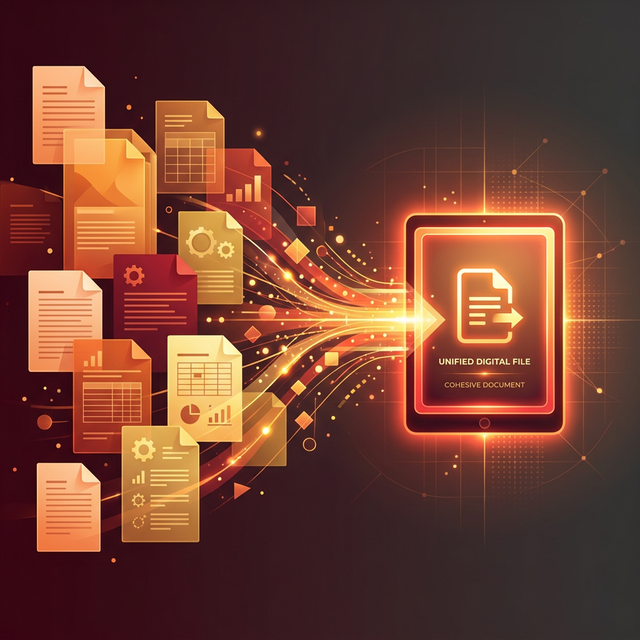
It happens in every professional environment: you have a signed contract in one PDF, a supporting appendix in another, and an invoice in a third. Your client needs everything as a single attachment. Or perhaps you've scanned a multi-page document one page at a time and now need to stitch those individual scans back into a complete file.
Merging PDF files is one of the most common document tasks in any office, and yet it trips up thousands of people every day. Adobe Acrobat can do it — but a full subscription costs $19.99 per month. Most "free" online PDF mergers upload your sensitive documents to servers based in unknown jurisdictions, retaining files for 24 hours or more. Neither option is acceptable for confidential documents.
This guide shows you how to combine any number of PDF files instantly, for free, with complete privacy — using a tool that runs 100% inside your browser.
Quick Way to Merge PDF Files
If you want to merge PDF files instantly, open the Merge PDF tool, upload your documents, arrange the order, and download the combined file. The entire process takes just a few seconds and happens directly in your browser.
Why Upload-Based PDF Mergers Can Be Risky
Before we cover the "how," it's worth understanding the risk of the most popular approach — upload-based online PDF mergers. When you upload a PDF to a third-party website, several things happen that most users don't think about:
- Your file travels over the internet to the service's servers. Even with HTTPS encryption in transit, the file is decrypted and stored on their infrastructure.
- The service retains your file for some period of time (often stated as "1 hour" or "24 hours," but there is no way to verify this).
- Your file exists on a third-party server that you have no control over. That server can be hacked, subpoenaed, or simply retain logs of what you uploaded.
For documents containing tax information, legal contracts, medical records, bank statements, HR files, or unreleased business data, this is an unacceptable privacy risk. The only truly secure way to process sensitive PDFs is to never upload them in the first place.
How In-Browser PDF Merging Works
Modern browsers are capable of far more than displaying web pages. Through technologies like WebAssembly (Wasm) and JavaScript libraries like pdf-lib, a website can process PDF files entirely within your browser's local memory. Your files are never transmitted to any server — they go from your hard drive directly into your browser's RAM, where they are processed and then returned to you as a download.
From a technical standpoint, merging PDFs in-browser involves reading each file's internal structure (pages, fonts, images, annotations) and re-assembling them into a new single document, all within the browser's sandboxed JavaScript environment.
Step-by-Step: Merge PDF Files
Step 1 – Open the Merge PDF Tool
Go to Imagetoolkit's Merge PDF tool. No registration, no email address, no payment required.
Step 2 – Upload your PDF files
Drag and drop your PDF files into the upload area, or click to browse your folders. You can upload multiple files at once. The tool supports PDFs of any size, including scanned documents, password-protected files (you'll be prompted for the password, which is processed locally), and PDFs containing images, forms, or complex formatting.
Step 3 – Arrange the file order
After uploading, each PDF appears as a card in the merge queue. Drag the cards to reorder the documents into the exact sequence you need in the final merged file. This step is crucial — make sure your cover page, main document, and appendices are in the correct order before proceeding.
Step 4 – Download the merged document
Click "Merge PDF." The processing happens instantly in your browser. The resulting merged PDF is automatically downloaded to your device. The original files remain unchanged on your computer — merging creates a new combined file, it doesn't modify the originals.
Common PDF Merging Scenarios
Combining Scanned Documents
Many modern scanners and phone scanning apps (like Apple's Notes scanner or Microsoft Lens) save each page as a separate PDF. After scanning a 10-page document, you end up with 10 individual PDF files. The Merge PDF tool lets you combine them all into a single multi-page document in one action. If you need to remove pages before merging, you can use our Remove Pages tool.
Assembling a Business Proposal or Report
Professional reports often combine content created in different applications — a cover page from Word, charts from Excel, and a signature page from a PDF editor. Converting each piece to PDF first (using our Word to PDF converter), then merging them, creates a cohesive, correctly formatted final document.
Combining Invoices or Receipts
Accountants and business owners frequently need to submit multiple invoices or expense receipts as a single PDF for reimbursement, audit, or tax filing purposes. Merging dozens of individual invoice PDFs into one organized document is far more professional than attaching 30 separate files to an email.
What to Do If the PDF Becomes Too Large
After merging, you might find that the combined PDF is larger than expected — particularly if the original files contain high-resolution images. Email clients and document portals often impose file size limits (commonly 10MB or 25MB). If your merged PDF is too large, run it through our Compress PDF tool immediately after merging. The compressor re-renders each page at optimized quality, often reducing file size by 50% or more with minimal visual impact.
Frequently Asked Questions
- How can I merge PDF files online?
You can merge PDF files online completely in your browser by using Imagetoolkit. Upload your documents, arrange the order, and hit merge to combine them instantly. - Is it safe to merge PDFs online?
It is entirely safe if you use a client-side tool that processes files locally. Your sensitive documents never leave your computer or get uploaded to an external server. - Can I merge password-protected PDFs?
Yes, you can. You will be prompted to enter the password directly within your browser so the file can be unlocked and combined locally. - Will merging PDF files reduce quality?
No, combining PDF files natively preserves the original quality, text, and images perfectly without any loss of resolution or compression artifacts.
Conclusion
Combining PDF files no longer requires expensive software or risky uploads to third-party servers. By using browser-based processing, joining PDF documents takes under a minute and keeps your data completely private. Try Imagetoolkit's free PDF merger to combine contracts, reports, invoices, or multi-page scans securely and instantly.
Comments
Loading comments…