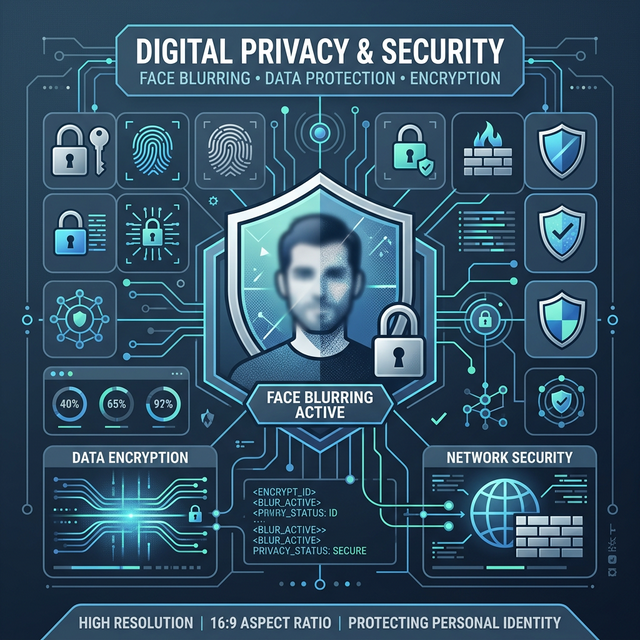
Every time you post a photo that includes other people's faces in public without their express permission, you may be creating a serious legal or ethical problem. This issue occurs because modern smartphones capture incredibly high-resolution images, unintentionally preserving the identities of bystanders, license plates, and sensitive documents in the background. Sharing these raw, unedited images online exposes individuals who did not consent to be photographed. Solving this problem matters greatly because proactive privacy protection helps you comply with strict data laws, respects the people around you, and prevents malicious actors from extracting sensitive information from your public posts. Taking just a few seconds to anonymize your images ensures your content remains completely safe to share without worry.
Quick Solution
If you want to solve this problem instantly, you can use our free Blur Face tool.
Steps:
- Upload your file
- Adjust the settings if needed
- Download the result
Why This Privacy Violation Happens
The core issue is technological progression outpacing personal privacy. Modern cameras inherently capture incredible detail without much effort, and seamlessly sharing images online permanently exposes individuals who may not have consented to be photographed. Because these files are so large and detailed, it's very easy to accidentally share a clear view of a sensitive background element. In fact, if your original camera files are too large for easy management, you can always shrink them with our Image Quality Adjuster before editing to maintain a fast workflow. Legal rules like GDPR in Europe treat facial images strictly as biometric personal data. Beyond faces, identifying information like home addresses, computer screens, or name badges often slip into the background of otherwise innocuous portrait shots, causing severe compliance or security risks. Redacting this data before uploading is the only reliable way to share images safely.
Step-by-Step Guide
Step 1 – Open the tool
Navigate directly to the Blur Face tool on Imagetoolkit. No account is needed, and absolutely all processing happens locally in your own browser so your photos are never transmitted to any external server.
Step 2 – Upload your file
Drag and drop your image or click to browse your desktop. The tool natively supports standard JPEG, PNG, and modern WebP formats. Since the application avoids risky cloud uploads, your highly sensitive photos remain completely private on your local storage device.
Step 3 – Adjust settings if needed
Use your mouse to draw a selection rectangle directly over each face or specific area you want to obscure. A secure Gaussian blur effect will instantly overwrite the identifying features underneath it while perfectly preserving the visual context of the rest of the image. You can easily adjust the intensity of the active blur slider if you need more obscuration.
Step 4 – Download the result
Click to download your newly blurred image. The tool rapidly creates a brand new output file, leaving your original photograph untouched exactly where it was. If you plan to post this image on platforms like Instagram, you may first want to run it through our Social Media Resizer to ensure it isn't cropped awkwardly by external algorithms.
Common Privacy Use Cases
Understanding when to utilize this technique is just as important as knowing how to do it. Here are several real-world situations where blurring faces and background elements is not just polite, but absolutely required for security and compliance.
- Street Photography: Blurring innocent bystanders in the background to avoid commercial liability and unauthorized use claims.
- Children in Photos: Hiding the recognizable faces of minors at public school events or large family gatherings.
- Workplace Documentation: Safely redacting employee faces, proprietary spreadsheets, or sensitive data visible on computer screens during office photo shoots.
- Accident Reports: Removing uninvolved third parties from insurance photos or crime scene photographs to maintain strict objectivity.
Tips or Important Privacy Notes
Always remember that digital blur can be manually reversed by sophisticated software if it is applied too lightly. Sufficiently blurred images cannot be reversed, but lightly obscured regions can sometimes be partially enhanced using advanced AI algorithmic upscaling. For maximum privacy protection in extremely sensitive situations, use a very heavy blur ratio or simply drop a solid color block over the sensitive area. Alternatively, if a person is the main focus of a photo but you don't actually need the background at all, you might find it cleaner to just extract the subject completely with an AI Background Remover.
Frequently Asked Questions
How do I blur a face in a photo online for free?
You can instantly obscure faces using a browser-based application like Imagetoolkit. Just upload your image directly, select the face area with the cursor, and carefully download the edited file. The process takes only a few seconds and requires absolutely no technical skills.
Is it safe to blur highly sensitive photos online?
Yes, but you must only do this if you use a secure tool that processes files locally on your own machine. Tools that run entirely within your browser keep your sensitive photos safely on your device without ever uploading them to a third-party server.
Can I blur a license plate instead of a human face?
Absolutely. You can simply draw a privacy blur box over any visible part of the image, including random license plates, street addresses, or private company documents. The tool applies precisely the same privacy protection to any selected digital area.
Will blurring part of the photo reduce the rest of the image quality?
No, the rest of your precious image remains completely untouched and unaffected by the local processing. The original resolution and sharp clarity are cleanly preserved exactly as they were before the selective blur box was actively applied.
Related Tools
Comments
Loading comments…